
*Skip to any section in this article by clicking on the links above
What are Automations?
Automations are smart rules that help you maintain high-quality product data by identifying, correcting, and validating product information automatically, without manual work.
Key Benefits:
- Reduce manual work: automatically complete missing attributes and standardize data
- Improve data quality: ensure consistent and accurate product information
- Save time: eliminate repetitive data correction tasks
- Scale efficiently: handle large catalogs without additional manual work.
How Automations Work:
Every automation follows a simple trigger → action logic: when something happens, Plytix performs the action you define. There are three types of triggers:
- Conditions met: runs when a product meets the conditions you set (e.g. IF Brand is empty, THEN set Brand = "Your Brand Name")
- Product created: runs every time a new product is created in Plytix
- Webhook received: runs when an external system, like your ERP, sends product updates to Plytix
Creating Automations
ℹ️ Please note that you need to have Admin or Editor permissions to create Automations
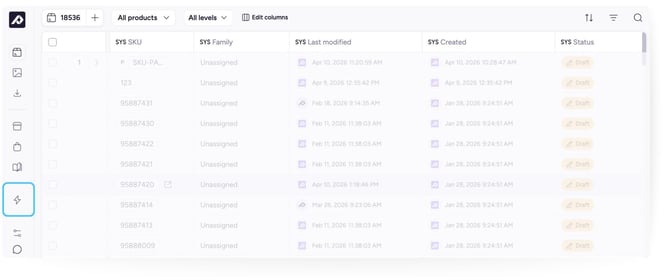
To create an automation, navigate to the main menu and click the Automations icon (⚡). Click +New, then choose the trigger for your automation: Conditions met, Product created, or Webhook received.
💡 Pro Tip: Start with simple automations to test the functionality before creating complex automation rules
Conditions met automations
Use this trigger to update products automatically whenever they meet the conditions you define.
Step 1: Name your automation so you can easily identify its purpose. Use descriptive names like "Auto-complete Brand for Electronics."
Step 2: Define trigger conditions:
- Click Add Condition or Add Relationship.
- Select the attribute you want to include in the condition.
- Choose the operator (equals, contains, is empty, etc.).
- Set the value (if applicable).
Example: IF Brand is not defined AND Category equals "Electronics".
ℹ️ These conditions work similarly to Plytix filters. By using AND and OR logical operators, you can create more tailored and complex rules that better match your needs and give you more flexibility.
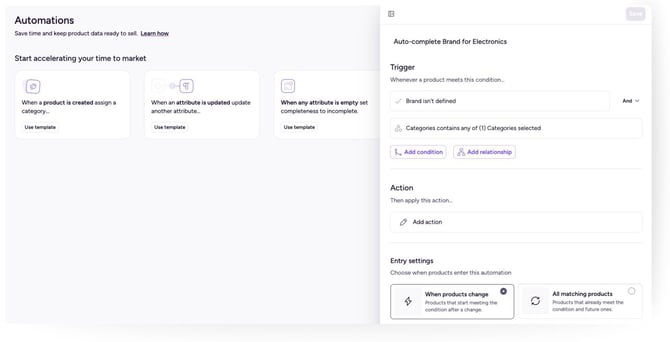
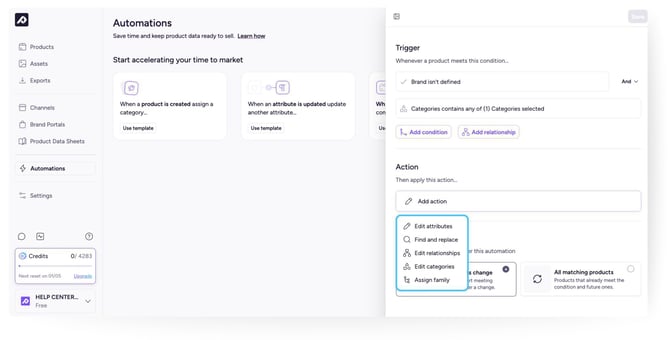
Step 3: Add an action to define what happens when conditions are met. Click Add Action and choose from:
- AI Edit (see below)
- Edit attributes
- Edit destinations
- Find and replace
- Edit relationships
- Edit categories
- Assign family
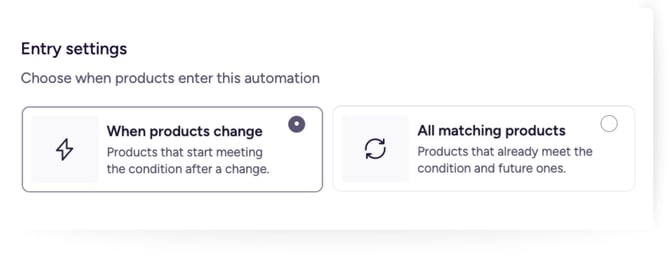
Step 4: Choose when products enter the automation:
- When products change, only applies to products that start meeting the condition going forward
- All matching products, applies to both existing and future products that meet the condition
Step 5: Define the change to be applied, then click Save to create and activate the automation.
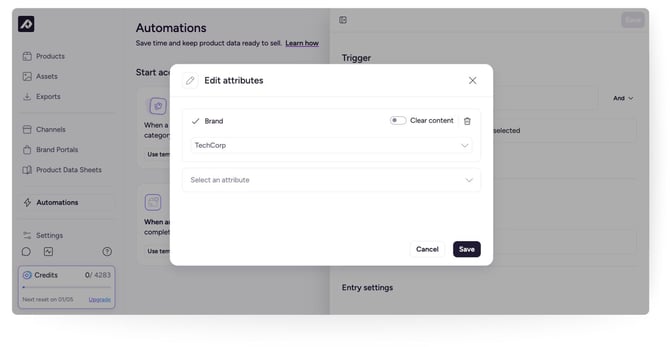
ℹ️ Note: Automations run automatically when defined conditions change.
Product created automations
Use this trigger to apply an action automatically every time a new product is created in Plytix, for example, assigning new products to a Family or generating a first draft of their description with AI.
- Name your automation.
- Under Action, click Select action and choose what should happen to every new product.
- Define the change to be applied, then click Save to create and activate the automation.
Webhook received automations
ℹ️ The Webhook received trigger is currently in beta.
Use this trigger to let an external system, like your ERP or another tool, send product data updates to Plytix automatically. Every time the system sends a request, Plytix finds the matching product and updates the attributes you've matched.
Think of the webhook like an inbox for product updates: whenever something changes in your other system, it sends those changes over, and Plytix applies them. For example, if prices change on 10 products, your ERP can send those updates straight away, then send another update a few minutes later when something else changes.
Common use cases include:
- Pricing updates from your ERP
- Product status changes
- End-of-life updates
- Any other product data your external system owns
To set up a webhook automation:
- Click +New and choose the trigger Webhook received.
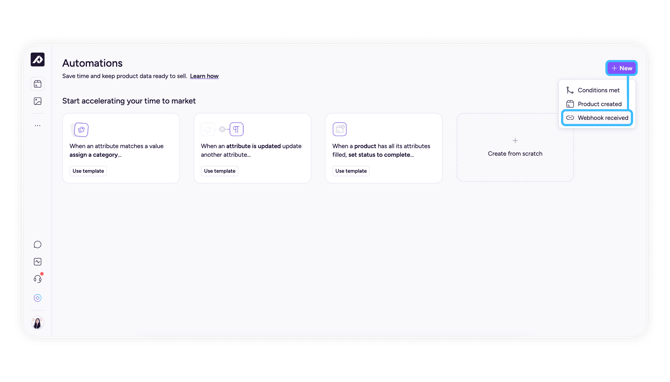
- Copy the unique webhook URL that's generated and paste it into the system that will send data to Plytix.
- Click Receive data and send a sample request (POST, JSON) so Plytix can detect your fields.
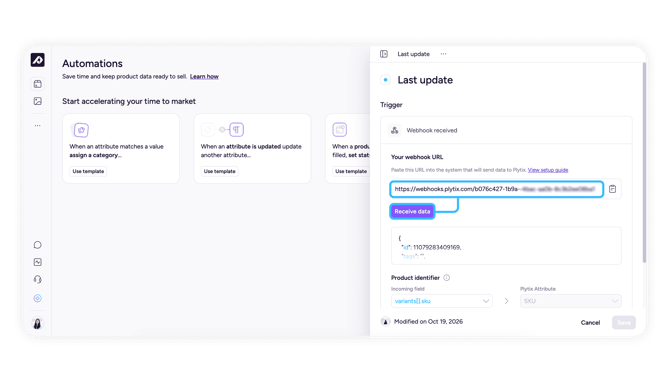
- Under Product identifier, match the incoming field that contains your SKU. Products are matched by SKU, so make sure your payload includes it.
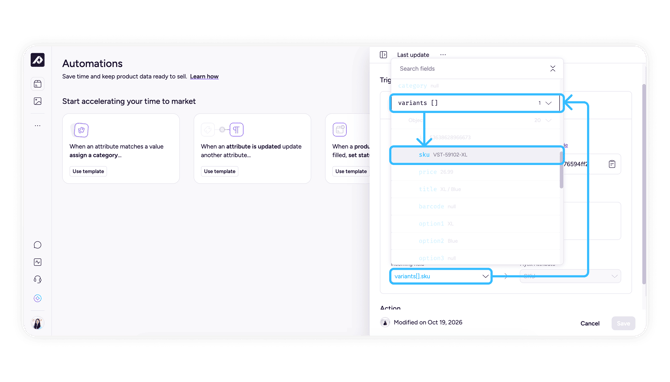
- Click Add attributes and match each incoming field to a Plytix attribute (up to 10 attributes).
- Click Save to activate the automation.
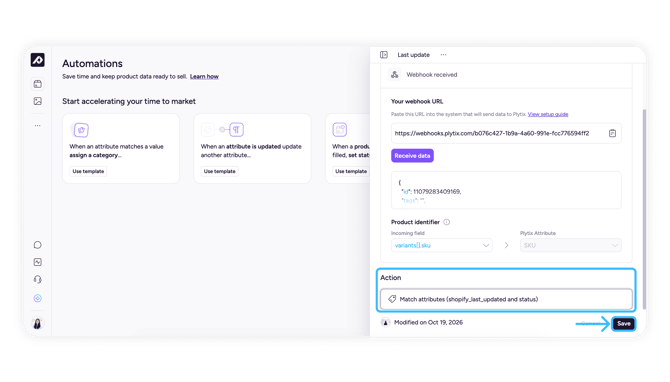
⚠️Copy and save your webhook URL as soon as it's generated. Each automation has its own unique URL, and it can't be reused across automations.
⚠️ After you click Receive data, Plytix only listens for a test request for a few seconds. Send your sample request straight away, or Plytix will stop listening and you'll need to click Receive data again.
ℹ️ Test requests don't change any of your products. They're only used to detect your fields.
Good to know:
- Supported attribute types: plain text, integer, decimal, date, dropdown, and boolean. Multiselect, image, and formula attributes aren't supported yet.
- Only existing products are updated. Unknown SKUs are skipped, and no new products are created.
- Only matched fields are updated. Any fields in the payload that you haven't matched are ignored.
- Empty values are ignored. Values like null or "" are skipped, so a webhook can't clear an attribute.
- Paused automations ignore requests. If a webhook automation is paused, any requests it receives are ignored.
- Deleted attributes: if some matched attributes are deleted, the automation keeps running and shows a warning until you fix it. If all of them are deleted, the automation is suspended until you match at least one valid attribute.
- No duplicates: webhook automations can't be duplicated, because each webhook URL is unique.
Example request:
curl -X POST https://<your-plytix-webhook-url> \ -H "Content-Type: application/json" \ -d '{"sku": "SHIRT-12345", "price": 18.99, "available": true}'
Using AI Actions in Automations
When adding an action step, you can select an AI action to automatically generate or update the content of a specified attribute, without any manual intervention.
This brings the power of Bulk AI into your automation rules. Instead of running Bulk AI manually, you can set conditions that trigger AI to act automatically whenever a product meets your criteria.
Common AI action use cases:
- Normalize or standardize field values (e.g. clean up inconsistent formatting)
- Enrich or regenerate product descriptions when a product is added to a collection
- Translate content automatically when a field is updated
- Correct errors in text attributes based on defined conditions
- Conditionally regenerate titles or descriptions based on category or status
⚠️ AI actions operate on attribute content once products are already in the PIM. They do not assist with field mapping during the import process itself. If you're importing new products, the automation will act on them once they exist in the platform and meet the defined conditions.
⚠️ Automations with AI actions are automatically suspended if your account runs out of credits, so they don't run and create a negative balance.
You'll see a 'Suspended' label on the Automations page (hover for details), and a warning banner on the automation's detail page explaining why. You'll also get an email when this happens. Once you have enough credits again, whether by purchasing more or at your next monthly reset, you'll need to go back into the automation's detail page and click 'Resume' to reactivate it, it won't resume on its own.
💡 Automations can also be suspended for other reasons, for example, if they reference an attribute that's since been deleted. In that case, remove the reference to the deleted attribute before resuming.
Managing Your Automations
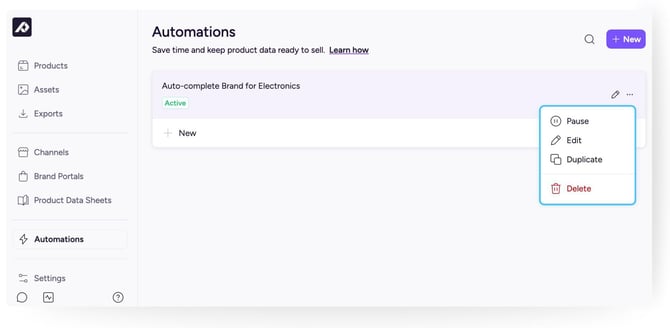
You can access all automations by clicking the Automations icon (⚡️) in the left sidebar. From there, you can find:
- Active Automations: Currently enabled and running
- Pause Automations: Created but disabled, so they’re not running
You’ll also see when your automations were last modified, and who made the changes.
For each automation, you can:
- Edit: Modify conditions and actions
- Enable/Disable: Turn automations on or off
- Duplicate: Quickly clone an existing automation rule
- Delete: Permanently remove automations
Audit Trail
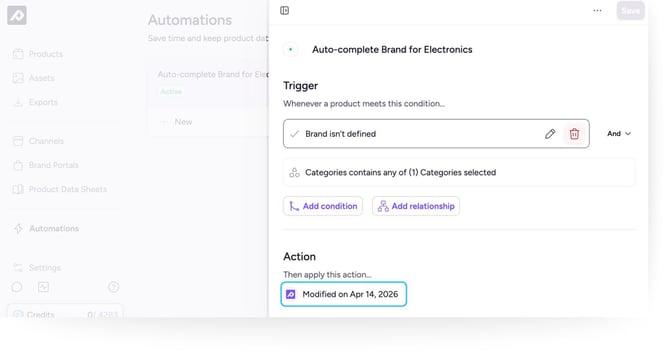
Every automation includes an overview of when it was last updated:
- Modified by: User who modified the automation
- Last modified: Most recent changes
Common Automation Use Cases
There are several use cases for setting up automations. Some common ones include:
- Complete missing attributes
Scenario: Products imported from ERP are missing Brand information.
IF: Brand is empty
AND: Category equals "Electronics"
THEN: Set Brand = "TechCorp"
- Auto-complete using related attributes
Scenario: Set warranty period based on product category
IF: Category equals "Laptop"
AND: Warranty is empty
THEN: Set Warranty = "1 Year"
- Validate Core Attributes
Scenario: Mark products as incomplete when essential fields are missing
IF: Product description is empty
OR: Barcode is empty
THEN: Set Status = "Incomplete"
- Update Status Based on Completeness
Scenario: Automatically mark status as “Ready” when all required fields are filled
IF: Description is not empty
AND: Thumbnail is not empty
AND: Brand is not empty
THEN: Set Status = "Ready"
-
Translate content on update (AI action)
Scenario: Automatically translate product descriptions into another language whenever the source content is updated.
IF: Description is updated
AND: Language equals "English"
THEN: AI translates Description to target language
- Prepare every new product (Product created)
Scenario: Automatically assign every new product to a Family as soon as it's created.
WHEN: A product is created
THEN: Assign Family = "General"
- Keep prices in sync with your ERP (Webhook received)
Scenario: Update product prices in Plytix automatically whenever they change in your ERP.
WHEN: Your ERP sends a request with a SKU and price
THEN: Update the Price attribute for the matching product
Best Practices
When setting up automations, there are a few best practices for optimal performance.
- Start simple: We recommend starting with basic single-condition automations, before making your rules more complex.
- Test thoroughly: Use a small product subset before full deployment
- Document logic: Use clear automation names to identify their purpose
-
Avoid conflicts: Ensure automations don't contradict each other
FAQ
When does a Plytix automation run?
It depends on the trigger. Conditions met automations run when a product's data changes so that it meets the defined conditions, for example during imports, manual edits, or other automations. Product created automations run every time a new product is created. Webhook received automations run every time your external system sends a request to the webhook URL.
Can I pause or stop a running automation in Plytix?
You can't stop an automation process once it has started. To prevent it from running again, disable the automation by clicking Pause in the automation editing panel.
Can I schedule when Plytix automations run?
No. Automations run automatically whenever their trigger happens. Time-based scheduling isn't available in the current version.
What happens if products change while a Plytix automation is running?
The automation continues to run based on its defined trigger, even if other processes are modifying the same products at the same time.
What happens if I delete a Plytix automation?
Deleting an automation removes it permanently, so it will no longer run. It doesn't reverse changes already made to products. Consider pausing instead of deleting when testing.
Is there a limit to how many automations I can create in Plytix?
There's no set limit, but performance may be affected if too many complex automations run at the same time.
What happens if my Plytix account runs out of AI credits while an automation is running?
Any automation with an AI action is automatically suspended before it runs, rather than running and creating a negative credit balance. You'll see a Suspended label on the Automations page, a warning banner on the automation's detail page, and you'll receive an email about the suspension.
How do I resume a suspended automation in Plytix?
Once you have enough credits, either by purchasing more or at your next monthly reset, go to the automation's detail page and click Resume. Automations don't resume automatically, even once credits are available again.
Are there other reasons a Plytix automation can be suspended?
Yes. An automation can also be suspended if it references an attribute that's since been deleted. Remove that attribute from the automation before you resume it.
Why didn't my product update from a Plytix webhook automation?
Check that the automation is active, the SKU exists in Plytix, the incoming field is matched to an attribute, and the value fits the attribute type. Webhook automations only update existing products, and they ignore empty values and unmatched fields.
Can I see past requests sent to a Plytix webhook automation?
Not yet. You can only see the last request received while testing, after clicking Receive data. Test requests don't change any products.
Can a Plytix webhook automation create new products?
No. Webhook automations only update products that already exist in Plytix. Requests with SKUs that don't match an existing product are skipped.
Can a Plytix webhook automation clear an attribute's value?
No. Empty values, like null or "", are ignored, so a webhook can't clear an attribute.
What´s next?
- Learn more about Attributes Types
- Learn how to Navigating the Product Overview Page
- Learn how to Work With Product Lists