
This article walks you through how to import product data from your ERP into Plytix using automated feeds. By syncing your ERP on a recurring schedule, you can keep SKUs, attributes, pricing, and media up to date in Plytix without manual uploads. You will learn how to prepare your ERP export, configure the file format, and set up an import feed in Plytix so product updates flow in consistently.
Before you startConfiguring your ERP export
Creating an import feed in Plytix
*Skip to any section in this article by clicking on the links above.
Before you start
- Decide which products and fields you’ll import (e.g., SKU/ID, Name, Description, Price, Cost, Brand, Category, Images, Status).
- Choose a transport method supported by your IT/security policies:
- SFTP (recommended for recurring files)
- HTTPS URL (public file link)
- Set up the file format: Only CSV is accepted
- Ensure you have ERP permissions to create exports/saved searches and schedule jobs.
Configuring your ERP export
Set up a recurring export that produces a single file with one row per product (or per product‑variant) and sends it to an SFTP server or a downloadable URL.
- One ID to rule them all: Include a stable SKU/unique ID column. This is how updates will match products in Plytix.
- Header row required: Use clear, machine‑readable column names (no duplicates).
- Media: Provide public URLs for images and files where possible.
- Categories/attributes: Use consistent separators (e.g., > for category paths; | for multi‑value attributes) and document them.
💡 Tip: Start with a tiny sample (5–10 products). It’s faster to validate mapping and attribute types on a small set before scaling up.
Creating an import feed in Plytix
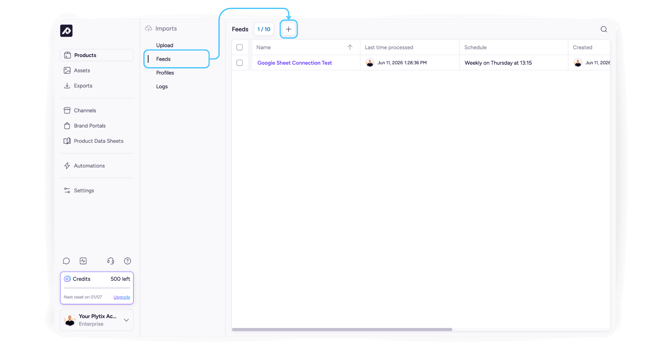
- Go to "Imports" in the left menu.
- Click "Feeds" and then “Add Feed”
- Choose the right feed type: URL, FTP/SFTP connection, or Dropbox.
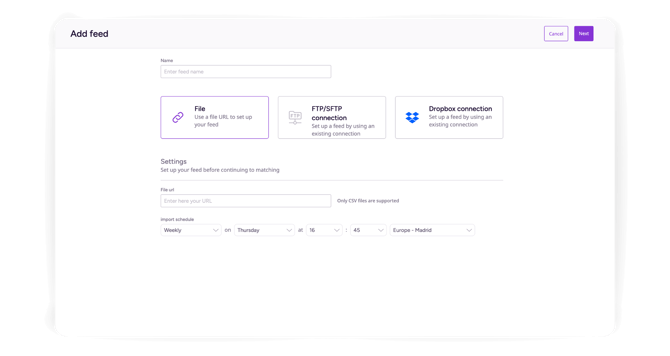
If FTP/SFTP or Dropbox:
- First, create the connection in settings
- Choose the file pattern (e.g., products_*.csv) if your ERP adds timestamps.
If URL: paste the direct file link
- Scheduling: Set the Frequency (hourly, daily, weekly) and Time window
- Choose Delimiter and Encoding.
- Map columns:
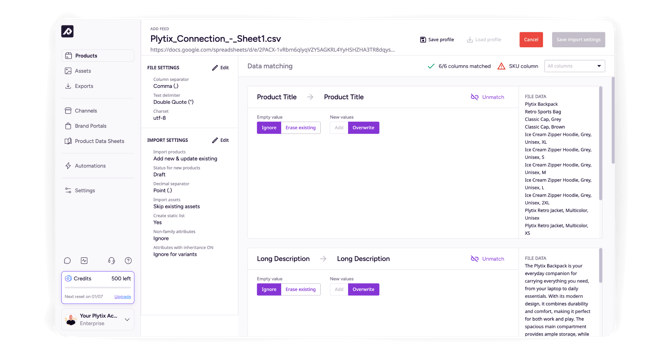
- Map your unique identifier to the system SKU in Plytix.
- Map the remaining fields to existing attributes in your account or create new attributes on the fly (text, integer, dropdown, multi‑select, etc.).
💡 Tip: Keep attribute names consistent between your file headers and Plytix to reduce mapping work.
Once your feed is up and running, we recommend turning on Notifications in your Plytix account to get updates whenever an import is done from your ERP.
After the first scheduled run, check your Import Log for processed rows, created/updated counts, and any possible errors.