
Bulk AI lets you generate and transform text for thousands of products at once using generative AI. Whether you’re translating descriptions, creating SEO-optimized titles, generating bullet points, or aligning copy with your brand voice, Bulk AI helps you do it all in just a few clicks.
Editing Products with Bulk AI
*Skip to any section in this article by clicking on the links above
Editing products with Bulk AI
ℹ️ This guide is about using AI for bulk edits in the Product Overview. To edit products in their detail pages, check out this article: Using the AI Autofill Feature for Text Attributes in Plytix
1. Select Your Products
Navigate to the Product Overview page and select the products you want to update. You can select as many products as needed for bulk editing.
2. Launch Bulk AI
Click the AI Edit icon (🪄) next to the standard Bulk Edit button..jpg?width=670&height=488&name=Bulk%20AI%20-%20Text%20Generation%20-%201%20(1).jpg)
3. Configure Your AI Task
In the Bulk AI modal:
Choose the Target Attribute: Choose which attribute you want to update.
ℹ️ Please note that Bulk AI is currently available for Text, Label and HTML attributes
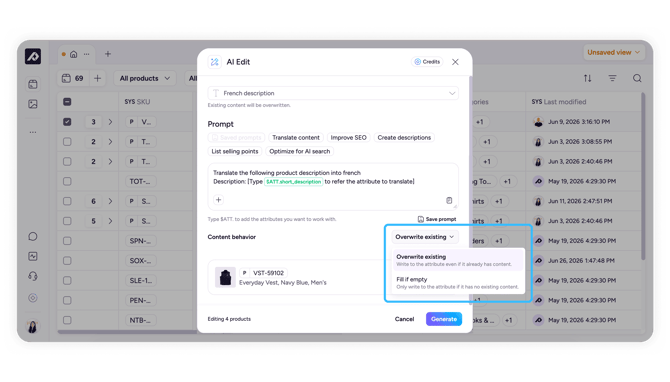
Choose the Content Behavior: Decide how Bulk AI should treat products that already have content in the target attribute. Click the Content behavior dropdown and choose:
- Overwrite existing: writes the AI-generated content to the attribute even if it already has content. Use this when you want to regenerate or replace what's there.
- Fill if empty: only writes to the attribute if it currently has no content, leaving existing values untouched. Use this when you're filling gaps in your catalogue without disturbing products you've already written for.
4. Write Your Prompt
Create clear instructions to autogenerate your content, referencing other attributes using the following syntax: $ATT.ATTRIBUTE_NAME.
💡 You can use the quick-start templates (Translate content, Improve SEO, Create descriptions, etc.) to get started, or select Saved prompts to load a prompt you've used before.
5. Apply a Brand Guideline (optional)
If you've set up Brand Guidelines, you'll see your saved guidelines listed below the prompt box. Select one to give the AI additional context about your brand voice, writing rules, and blocked terms. This is useful for brand-facing content like product descriptions, but you can leave it unselected for tasks where brand voice isn't relevant, such as format clean-ups or data normalisation.
To learn how to create and manage Brand Guidelines, see: Setting Up Brand Guidelines for AI Content
To check if your prompt generates the right results, click Preview to get a sample of the generated content based on the first product you selected. This gives you the chance to adjust your prompt if needed, before you save it.
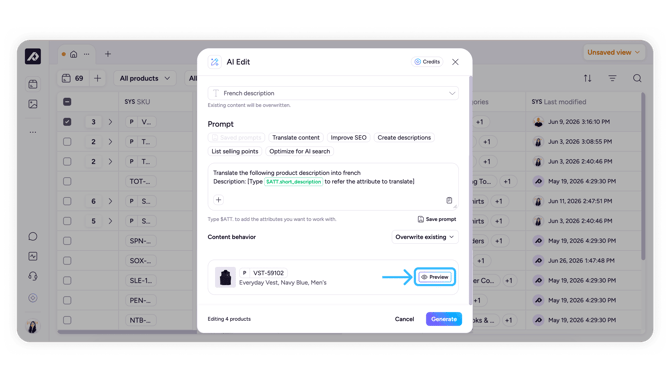
6. Click Generate to start the bulk generation.
⚠️ If Content behavior is set to "Overwrite existing", clicking "Generate" will overwrite any existing values in your attribute. Set it to "Fill if empty" if you only want to add content to products that don't have any yet. To make sure the generated result is correct, you can preview a sample of the content before saving the action.
7. View Progress
The bulk edit task will run in the background. You can track its progress in the process queue by clicking on the Activity Log button. .jpg?width=670&height=292&name=Bulk%20AI%20(Text%20Generation).jpg)
8. Review Results
Once the edit is complete, you'll receive a notification. Review the updated products to ensure the AI-generated content meets your standards.
Saved Prompts
Saved Prompts is a library of prompts you've written and stored for reuse in the AI Text Tool. Instead of rewriting the same instructions every time, you can save a prompt once and apply it across your catalogue whenever you need it.
This is particularly useful for recurring content tasks, like translating descriptions, reformatting copy, or standardising titles, where the same instructions apply across many products.
When to use Saved Prompts
Saved Prompts work best when you're running the same type of task repeatedly. Some examples:
- "Translate product descriptions to French"
- "Write a short SEO meta description under 160 characters"
- "Rewrite in a casual, direct tone"
- "Extract key features as bullet points"
If you find yourself rewriting the same prompt more than once, it's worth saving it.
How to save a prompt
- Write your prompt in the prompt editor as usual.
- Once you're happy with the result, click Save Prompt.
- Give it a clear, descriptive name (e.g. "French translation, product descriptions") so it's easy to find later.
- The prompt will be saved to your personal Saved Prompts library.
How to use a saved prompt
- Open the Bulk AI modal and select your target attribute.
- Click Saved Prompts to open your library.
- Select the prompt you want to use, it will load automatically into the prompt editor.
- Adjust any variable fields if needed, then click Preview or Generate as normal.
⚠️ Users can save up to 10 prompts per account.
Managing your AI Jobs
Cancelling Jobs
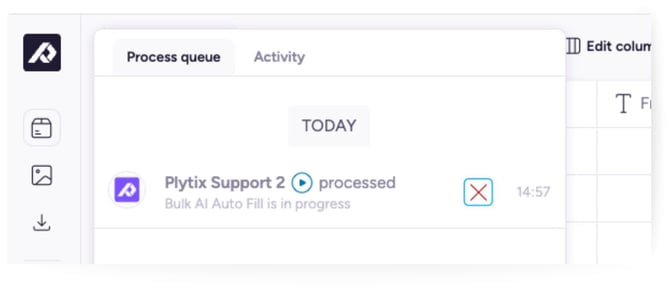
Need to stop a job? Navigate to the Process Queue and click the cancel button for any active bulk edit job.
Best Practices for Success
Start Small, Scale Smart
Begin with a small batch of 10–50 products to ensure your prompt generates the desired results before applying it to your entire catalog. You can also use the Preview option to check a sample of the generated content.
The quality of your AI-generated result depends on how specific your prompt is. Here are a few tips we recommend following to write a good prompt:
- Keep instructions concise and specific
- Use clear and precise language to get consistent results
- Include specific instructions, like word limits, tone, language
Test and Iterate
Refine your prompts based on initial outputs. Even small adjustments can significantly improve the quality of the results.
If a prompt works well, we recommend that you save it in your personal notes so you can use it as a reference in other cases.
Monitor Performance
Large or complex prompts may take longer to process. Plan accordingly, especially for
time-sensitive updates.
AI Prompt Cheat Sheet
Below are some example prompts to help you efficiently create SEO-friendly, engaging, and brand-consistent product content, and much more:
| Title | Prompt |
|---|---|
| Selling Points Generation from Features List | Rewrite the product description by transforming its features into clear, customer-focused benefits. Emphasize how the product solves a problem, fulfills a need, or adds value in a real-life context. Integrate the specified keywords naturally, and avoid using any blocked terms. Original Description: [Type $ATT. to refer to your product original product description]. Must-include Keywords: [type down the keywords you want to use: keyword1, keyword2, …] Blocked Terms: [Type down any blocked terms to avoid: term1, term2, …] |
| SEO-Optimized Product Title Generator | Create an SEO-optimized product title under [CHAR_LIMIT] characters. Include primary keyword: $ATT.PRIMARY_KEYWORD. Structure: [Brand] + [Product Type] + [Key Features] + [Model/Size if relevant]. Prioritize search visibility while maintaining natural readability. Current title: $ATT.PRODUCT_TITLE. Key features: $ATT.KEY_FEATURES. Output only the optimized title. |
| Effective Product Description Writer | Write a compelling product description for [TARGET_AUDIENCE]. Use [BRAND_VOICE_TONE] tone. Structure: Hook (address pain point) → Key benefits (not just features) → Social proof element → Call to action. Length: [WORD_COUNT] words. Product: $ATT.PRODUCT_NAME. Features: $ATT.SPECIFICATIONS USP: $ATT.UNIQUE_SELLING_POINTS. Focus on how this solves customer problems. Use sensory language where applicable. |
| Brand Voice Consistency Rewriter | Rewrite this content in [BRAND_NAME] voice. Brand characteristics: [BRAND_PERSONALITY]. Use [VOCABULARY_LEVEL] language. Maintain these brand phrases: [BRAND_TERMINOLOGY]. Avoid: [WORDS_TO_AVOID]. Original: $ATT.DESCRIPTION Keep all facts accurate. Match this tone sample: [BRAND_VOICE_EXAMPLE]. |
| Product Description Translation with Brand Consistency | Translate from [SOURCE_LANGUAGE] to [TARGET_LANGUAGE]. Maintain [BRAND_VOICE_TONE] tone adapted for [TARGET_MARKET]. Keep technical specs exact, preserve emotional impact, ensure natural native-speaker flow. Original: $ATT.PRODUCT_DESCRIPTION. Localize: units of measurement, cultural references, idioms. Maintain brand terms: [BRAND_TERMINOLOGY]. |
| Multi-Market Title Adaptation | Adapt this title for [TARGET_MARKET] in [TARGET_LANGUAGE]. Consider local search terms for: $ATT.PRODUCT_CATEGORY. Include locally preferred term for main feature. Max [MARKET_CHAR_LIMIT] characters. Original: $ATT.PRODUCT_TITLE. Local competitor terms: [LOCAL_TERMINOLOGY]. Maintain brand name as-is. Prioritize local search behavior. |
| Grammar and Clarity Optimizer | Review and optimize for [READING_LEVEL] audience. Fix: grammar, spelling, punctuation, clarity issues. Improve: sentence flow, word choice, paragraph structure. Maintain brand voice: [BRAND_TONE]. Content: $ATT.DESCRIPTION. Output: Corrected version with [HIGHLIGHT_CHANGES] + brief list of main improvements. |
| Fashion Product Storyteller |
|
| Seasonal Campaign Copy Adapter |
|
| Bulk SKU Description Generator | Generate unique description for variant. Base product: $ATT.BASE_DESCRIPTION. This variant: Size [$ATT.SIZE], Color [$ATT.COLOR], Configuration [$ATT.CONFIG]. Modify: Specific references to variant attributes, use cases for this configuration. Maintain: Brand voice, key benefits, technical accuracy. Make it unique while clearly part of product family. |
| SEO Evaluator for Product Descriptions |
You are an SEO expert specialized in ecommerce product descriptions. Your task is to: Evaluate the description’s SEO quality (considering clarity, keyword usage, readability, uniqueness, persuasiveness, and relevance). Give it a score from 1 to 10, where 1 means very poor SEO and 10 means excellent SEO optimization. Provide a concise list of 3–5 actionable tips to improve the description for higher SEO performance (for example, adding keywords, improving structure, increasing uniqueness, or making the text more persuasive). Return the output in the following structured format: SEO Score: [number 1–10] Strengths: [bullet points] Improvement Tips: [bullet points] Product description: $ATT.description |
| Format Clean-Up |
You are a text-normalization assistant. |
Frequently Asked Questions
Will Bulk AI overwrite my existing content?
That depends on the Content behavior setting you choose when configuring your AI task. With "Overwrite existing" selected, Bulk AI will replace the content in your target attribute. With "Fill if empty" selected, it will only add content to products that don't already have any, leaving existing values untouched. We still recommend previewing your results and backing up important content before processing large batches.
What should I do if some products fail to process?
Common reasons for failed AI content processes include missing referenced attributes or overly complex prompts. Adjust your prompt based on the error details or contact our Support Team for help.
Can I use Bulk AI for all attribute types?
Currently, Bulk AI supports Text, Label, and HTML attributes only. We're actively working to expand support to additional attribute types in future updates.
What´s next
- Learn how to use different attribute types
- Learn how to create and manage attribute groups
- Learn how to change the attribute type